How to Install and Use an ULTRALOQ Lock, Xthings Home, and Apple Home Key
Official ULTRALOQ typography says Latch 5 Pro and Bolt Pro are DIY replacements for compatible pre-drilled levers or deadbolts, with published door-thickness, backset, and bore measurements. Official support typography walks through pairing many ULTRALOQ models to the Xthings Home app, official user roles for Owner, Admin, Normal User, and Temporary User, and model-specific Apple Home or Apple Home Key setup for Bolt NFC and Bolt Mission. Official Latch 5 Pro typography requires a compatible Matter controller and Thread border router and currently lists Samsung Wallet rather than Apple Wallet. This guide records those official setup rules as of November 23, 2026. It is not an installation test or a walk-through of unpublished button sequences.
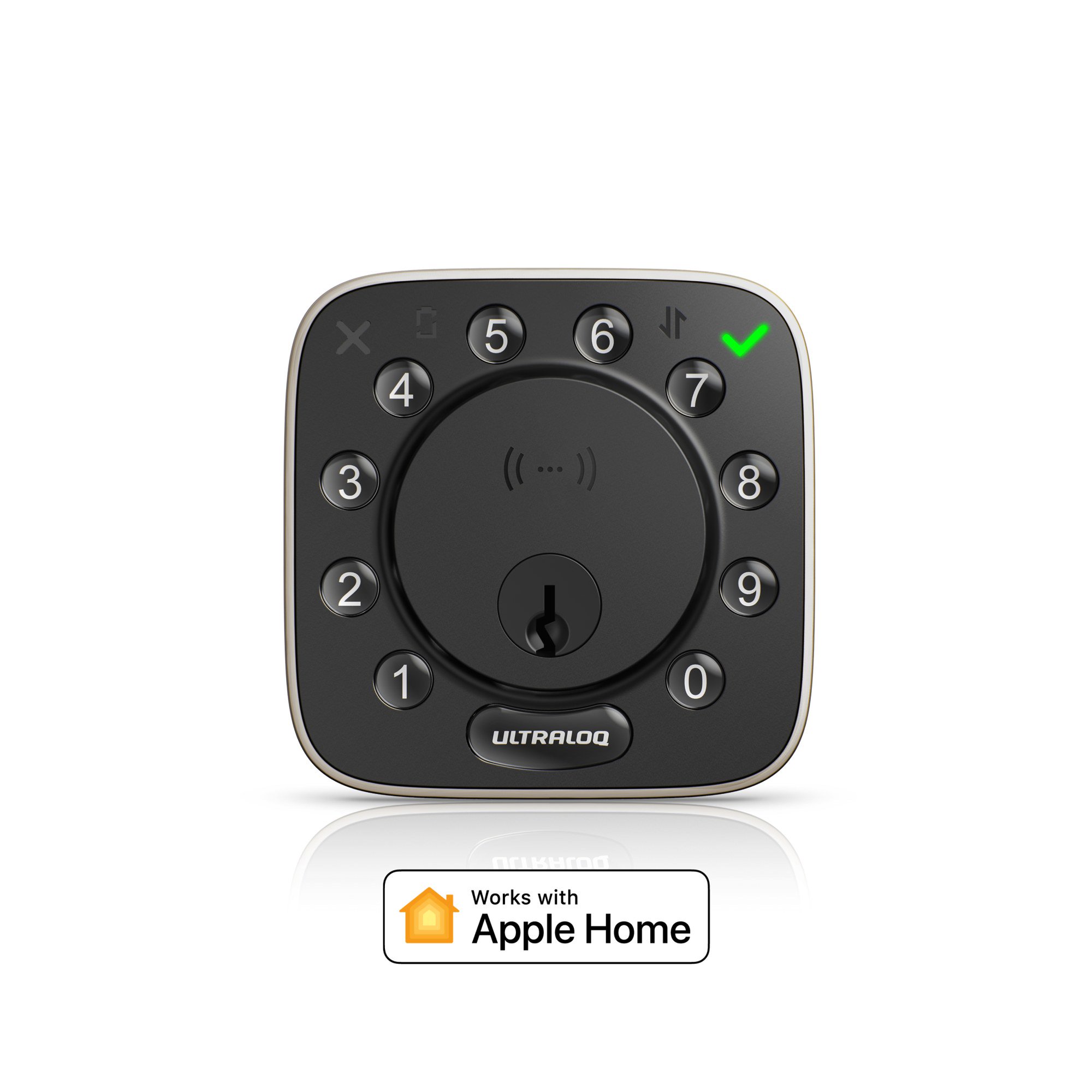
Disclosure: This page may contain affiliate links. They do not influence our editorial conclusions. Read the disclosure.
Our pick
- See price at ULTRALOQ
Top pick
ULTRALOQ
ULTRALOQ is the brand behind the ULTRALOQ Official Store at www.ultraloq.com, which sells smart deadbolts, lever locks, and related access hardware such as Latc...
What this guide covers
How to Install and Use an ULTRALOQ Lock, Xthings Home, and Apple Home Key

Official ULTRALOQ typography describes many current Official Store locks as DIY replacements for compatible pre-drilled doors, then points buyers to the Xthings Home app for user management and to model-specific Apple Home or Apple Home Key steps for some deadbolts. Those official flows are not identical from model to model. This guide records official installation measurements, official app-pairing typography, official access-sharing roles, and official Apple Home instructions as they appeared on November 23, 2026. It is not an installation test, a pairing test, or a walk-through of unpublished button sequences, and it does not invent steps that official pages do not print.
Official Latch 5 Pro specifications are in the review. Official shipping and warranty disagreements are in the shopping guide. Official differences among Latch 5 Pro, Bolt Pro, and Bolt Mission are in the comparison. Official in-stock models are in the lineup FAQ. The official store link is /go/ultraloq. The Smart Reviews brand page is /brands/ultraloq.
Official door-fit typography before installation
Official Latch 5 Pro typography says the lock is “made to replace a standard lever,” that no wiring or drilling is required “for a compatible, pre-drilled door,” and that measurements should be confirmed before ordering. Official Latch 5 Pro door-compatibility typography lists door thickness as 1⅜–1¾ in, backset as 2⅜ or 2¾ in, a 2⅛ in bore hole, and left or right handing. Official typography also says the exterior assembly is weather-resistant and the interior assembly is for indoor use only.
Official Bolt Pro typography says the lock “fits most standard pre-drilled doors in the U.S. and installs with a screwdriver,” with no wiring or drilling required for a compatible door. Official Bolt Pro typography is not a single thickness sentence. A DIY block lists door prep as a 2⅛ in face hole and door thickness as 1⅜–2¼ in, with backset 2⅜ or 2¾ in. The specifications table says door thickness is 1⅜–1¾ in, that a Thick Door Kit is required for 1¾–2¼ in, and that the latch is adjustable to 2⅜ or 2¾ in. This guide records both official Bolt Pro forms rather than collapsing them into one unofficial range.
An official support article titled “Installation Guide for ULTRALOQ Latch 5 Series,” updated January 27, 2026, says the Latch 5 series “fits the standard doors” and that if a door is not prepped with a borehole, “you can use the template included in the box as a guide to drill the hole as well.” Official handle typography in that article says to place the handles “in the opposite direction of the door’s edge,” then, “using the hex wrench provided, screw the set screws anticlockwise inside the handle base,” and then turn the handle down; “the door latch should move smoothly.” Official removal typography says to insert the hex wrench into the handle hole and rotate it clockwise until the handle can be pulled out, then reinstall it in the right direction. That article is titled for the Latch 5 Series and does not separately name Latch 5 Pro in the fetched body. It is recorded here as official Latch 5 Series typography, not as a substitute for a printed Latch 5 Pro quick guide.
A broader official article, “Can ULTRALOQ Smart Lock be installed on My Door?,” updated March 17, 2025, says the interior assembly “is not suitable for outdoor use due to the battery box,” and that official typography does “not recommend using our product on outdoor gates or anything similar.” The same article includes older thick-door-kit notes for Latch 5 Series and other families, and official typography says ULTRALOQ “is not adaptive for any 5'' backset door.” Because that article predates the current Latch 5 Pro product table and mixes older model families, this guide does not overwrite the Latch 5 Pro product-page thickness table with the 2025 article. Confirm the live official product page and the in-box guide for the exact model being installed.
Official US Cylinder typography is a different path: a smart mortise cylinder that replaces a compatible existing cylinder, not a complete door lock, and not a substitute for Latch 5 Pro or Bolt Pro measurements.
Official Xthings Home pairing and access-sharing typography
Official product typography names the Xthings Home app as the app for Latch 5 Pro, Bolt Pro, and several other Official Store locks. An official programming guide titled “ULTRALOQ Products App Mode Programming Guide,” updated July 30, 2026, says it covers pairing to an Android or iOS smartphone for “ULTRALOQ Bolt Series, ULTRALOQ Latch 5 Series, ULTRALOQ U-Bolt Series, ULTRALOQ UL3 Series, ULTRALOQ Lever, or ULTRALOQ UL1/Combo.” Official steps in that article are:
- Scan the QR code to install Xthings Home (formerly U home) from the App Store or Google Play, and allow the requested permissions.
- Reset the lock to Factory Default Mode.
- Open the app and sign in to a Xthings account.
- Bring the smartphone near the lock, “within around 3ft.”
- Choose the correct model and scan for the lock.
- Select the lock in the device list, enter a 4–8 digit admin code, and tap Next.
- Enter a name and a location, then tap Next.
- Once complete, view the lock in the app.
Official typography says add/delete user, view logs, and other settings are shown in an official video rather than fully restated as text. This guide does not invent those extra button sequences.
A more specific official Latch 5 Series app article names “Latch 5 Fingerprint / Latch 5 NFC” in at least one requirements list and includes a 2.4 GHz Wi-Fi step. Official Latch 5 Pro typography instead emphasizes Matter over Thread and says “a compatible Matter controller and Thread border router are required.” This guide does not merge that older Wi-Fi step onto Latch 5 Pro.
Official Latch 5 Pro and Bolt Pro typography says the Xthings Home app can manage users, share permanent, scheduled, or temporary virtual keys, show access logs, and send alerts. Official Bolt Pro typography also says the lock can be checked and controlled “wherever you are” in the app, and that connectivity is “Bluetooth and Wi-Fi; no hub required for Xthings Home.” Official typography further says Wi-Fi and Matter modes “can run simultaneously” on Bolt Pro, and that a buyer should follow the included quick guide when entering setup mode.
An official support article on user roles, updated December 24, 2025, defines four official categories in Xthings Home (formerly U home):
- Owner: the person who registers the lock initially, with all privileges, and “cannot be deleted from the lock.”
- Admin: can always unlock via fingerprint, code, or app; can add or delete Admin and Users, change lock settings, and view logs.
- Normal User: can always unlock via fingerprint, code, or app.
- Temporary User: “has limited access within the scheduled time range.”
Official typography on adding a fingerprint after an invitation says the owner adds the person’s email “via ULTRALOQ Air,” after which the invitee signs into Xthings Home and follows in-app fingerprint instructions. Those are official role and invitation lines, not an access-sharing test.

Official Apple Home and Home Key typography, which is model-specific
Official typography does not give every Official Store lock the same Apple Home or Home Key path. Official Latch 5 Pro body typography says Samsung Wallet is supported now and that Apple Wallet and Google Wallet support is coming soon. Official homepage typography adds that “Apple Home and Matter work with select ULTRALOQ models.” Do not assume Latch 5 Pro currently follows the Bolt NFC Home Key steps.
Official Bolt NFC typography is the clearest Home Key path on the Official Store. Official product typography says to “use Apple Home Key with iPhone or Apple Watch, Android NFC, RFID key fobs, keypad codes, the app, or a physical key.” An official support article updated January 27, 2026, “ULTRALOQ Bolt Home Key_Setup Steps for Apple Home Key on Bolt NFC,” prints these official steps: open the Apple Home app; tap + and Add Accessory; scan the QR code on the Bolt NFC battery cover; assign a room and name; when prompted, add Home Key to Wallet; choose Express Mode or require Face/Touch ID or passcode; optionally set a 4–8 digit keypad PIN; then tap iPhone or Apple Watch to unlock. A related official notice, updated December 24, 2025, says Bolt NFC built-in Wi-Fi “is exclusively for remote control via the Xthings Home (Formerly U home) app.” If Wi-Fi is not set up in that app, “Apple Home remote control will require a Matter-compatible Apple Border Router, such as an Apple HomePod, Apple TV, or Apple HomePod mini.” Official typography still says the lock can be added to Apple Home for Home Key, Bluetooth control within range, and local locking and unlocking without that border router.
Official typography on using both ecosystems, updated January 22, 2026, says HomeKit enables control via Siri, the Home app, and Apple Watch, while Xthings Home allows adding fingerprints, temporary users, and passwords, “offering additional features,” and that “both can be used simultaneously.”
Official Bolt Mission typography is a Matter-over-Thread Apple Home path, not the same Home Key article as Bolt NFC. An official article dated February 10, 2026, calls Bolt Mission “the world’s first smart deadbolt with UWB technology” and says it can work with Matter over Thread platforms including Amazon Alexa, Apple Home, Google Home, IFTTT, and Samsung SmartThings. Official typography says a compatible Thread border router is required to connect Bolt Mission to Apple Home and lists HomePod (2nd Gen), HomePod mini, and Apple TV 4K (2nd and 3rd Gen Wi-Fi + Ethernet 128GB). Official pairing typography says to open Apple Home, tap +, Add Accessory, scan the Matter setup QR code on the underside of the battery cover, press and release the Set button beneath the battery compartment until a beep is heard, then add the lock, choose a room, name it, and tap Done. Official troubleshooting typography says UWB auto unlock “requires Xthings Home app,” and it lists factory-reset and firmware steps if pairing fails. Those official Mission steps should not be copied onto Latch 5 Pro or Bolt NFC.
If you are matching a door, pairing Xthings Home, or adding a Home Key, use the official in-box guide and the live official support article for the exact model, and open the Official Store through /go/ultraloq to confirm the current product footnotes. This page is a record of official typography, not a substitute for those model-specific guides.
References
- ULTRALOQ Latch 5 Pro official product page
- ULTRALOQ Bolt Pro official product page
- ULTRALOQ Bolt NFC official product page
- ULTRALOQ Bolt Mission official product page
- Official Latch 5 Series installation guide
- Official door-fit support article
- Official 5-inch backset support article
- Official Xthings Home programming guide
- Official Owner, Admin, Normal User, and Temporary User article
- Official Bolt NFC Apple Home Key setup article
- Official Bolt Mission Apple Home setup article
- Official HomeKit and Xthings Home comparison article
Meet your guide
Lipeiguan
author
What to read next
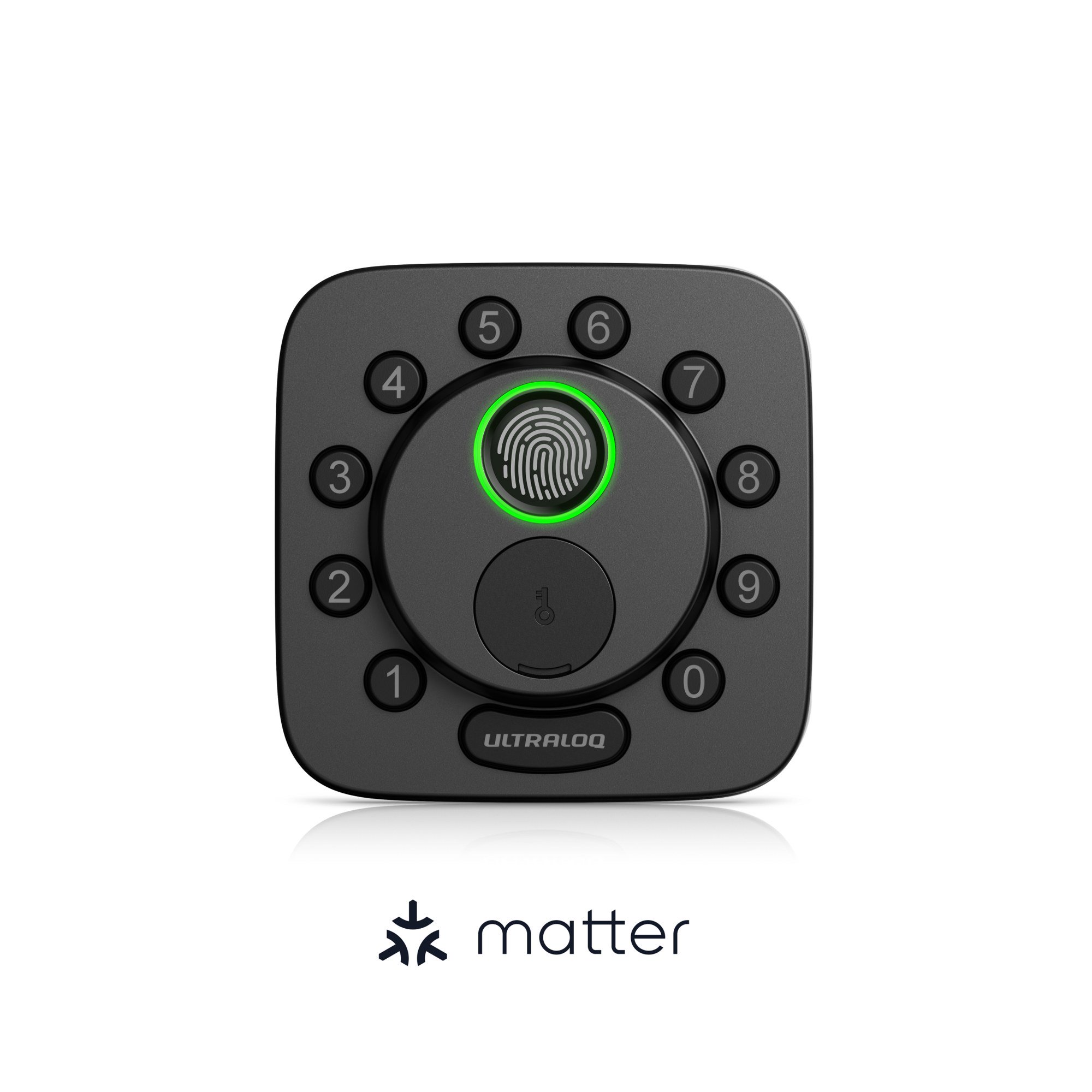 Best ULTRALOQ Smart Locks on the Official Store in 2026: Official FAQ On November 23, 2026, the ULTRALOQ Official Store merchandised in-stock locks including Latch 5 Pro at $249.99, Bolt Pro at $239.99 and $269.99, Bolt Mission at $299.99, Bolt SE at...
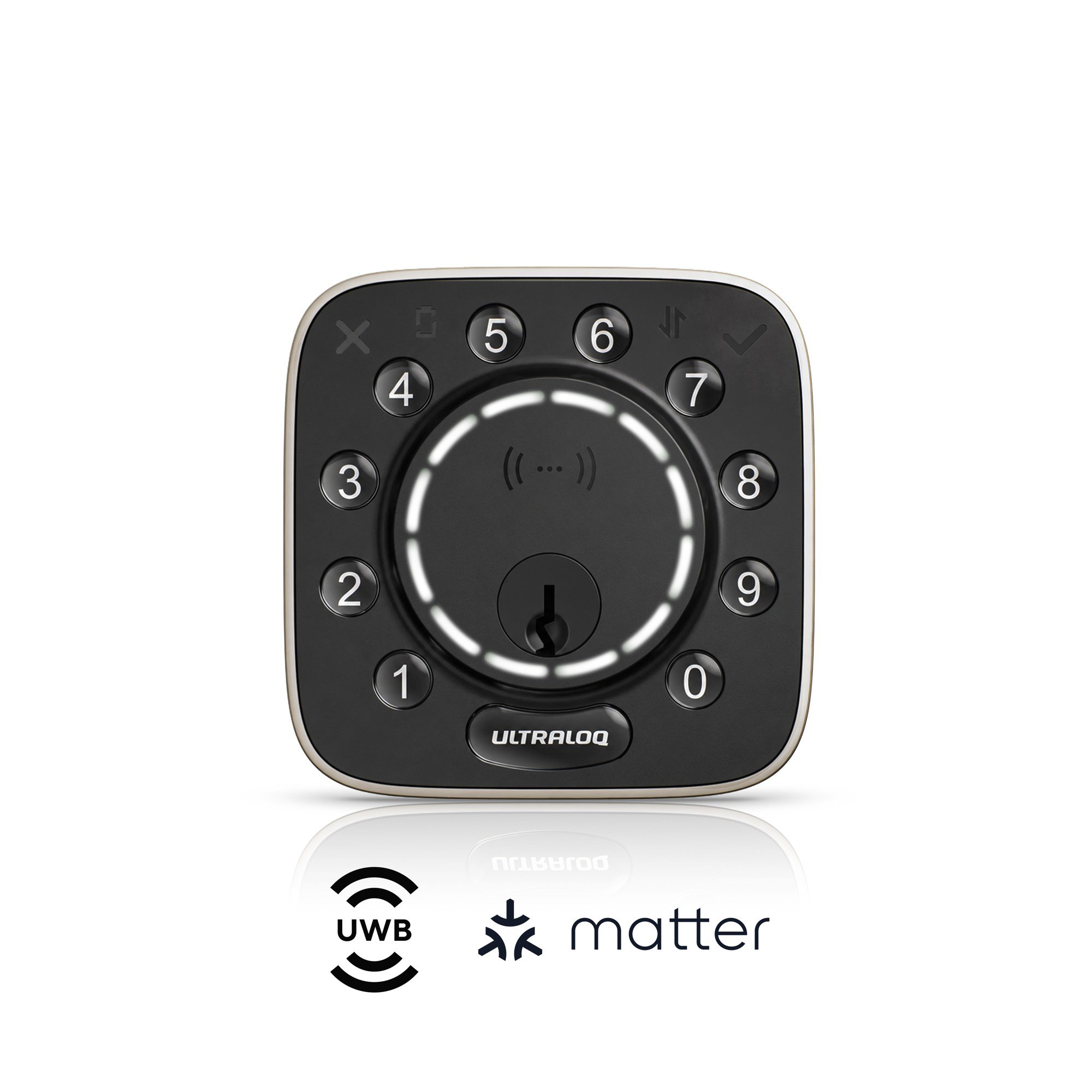 ULTRALOQ Latch 5 Pro vs Bolt Pro vs Bolt Mission: Official Differences Official ULTRALOQ typography separates Latch 5 Pro as a Matter and Aliro smart lever lock listed at $249.99, Bolt Pro as “the ultimate smart deadbolt” listed at $239.99 and $269.99...
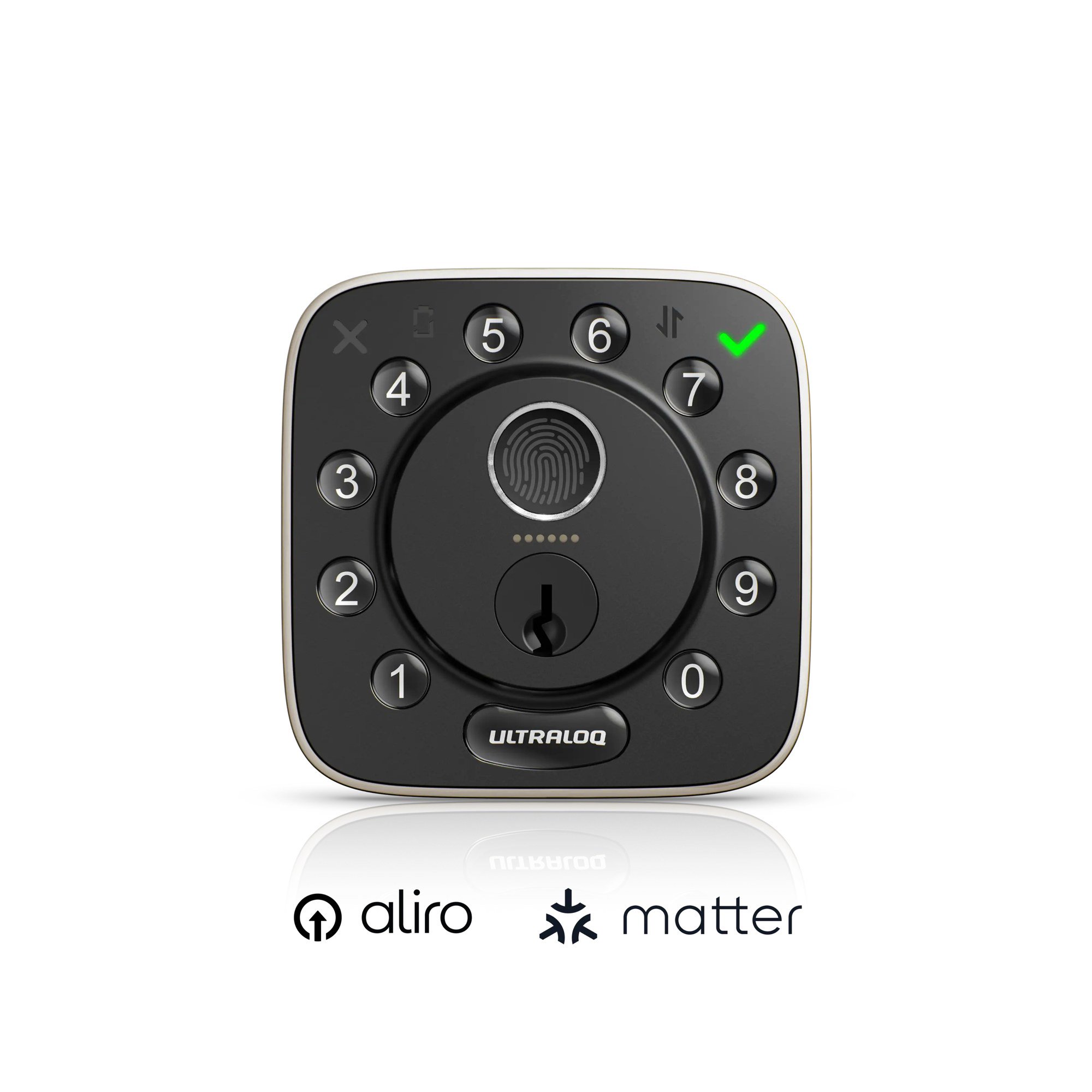 ULTRALOQ Official Store Shopping Guide: Shipping, Returns, and Warranty Official ULTRALOQ shipping typography says contiguous-U.S. orders ship from a California fulfillment center, typically arrive in 3–5 business days, and qualify for free shipping at...